Laptop Ergonomics: Separating Screen and Keyboard
The ergonomic problem of a laptop is not posture but design: because the screen and keyboard are fixed to each other, they cannot both be at the right height at the same time.
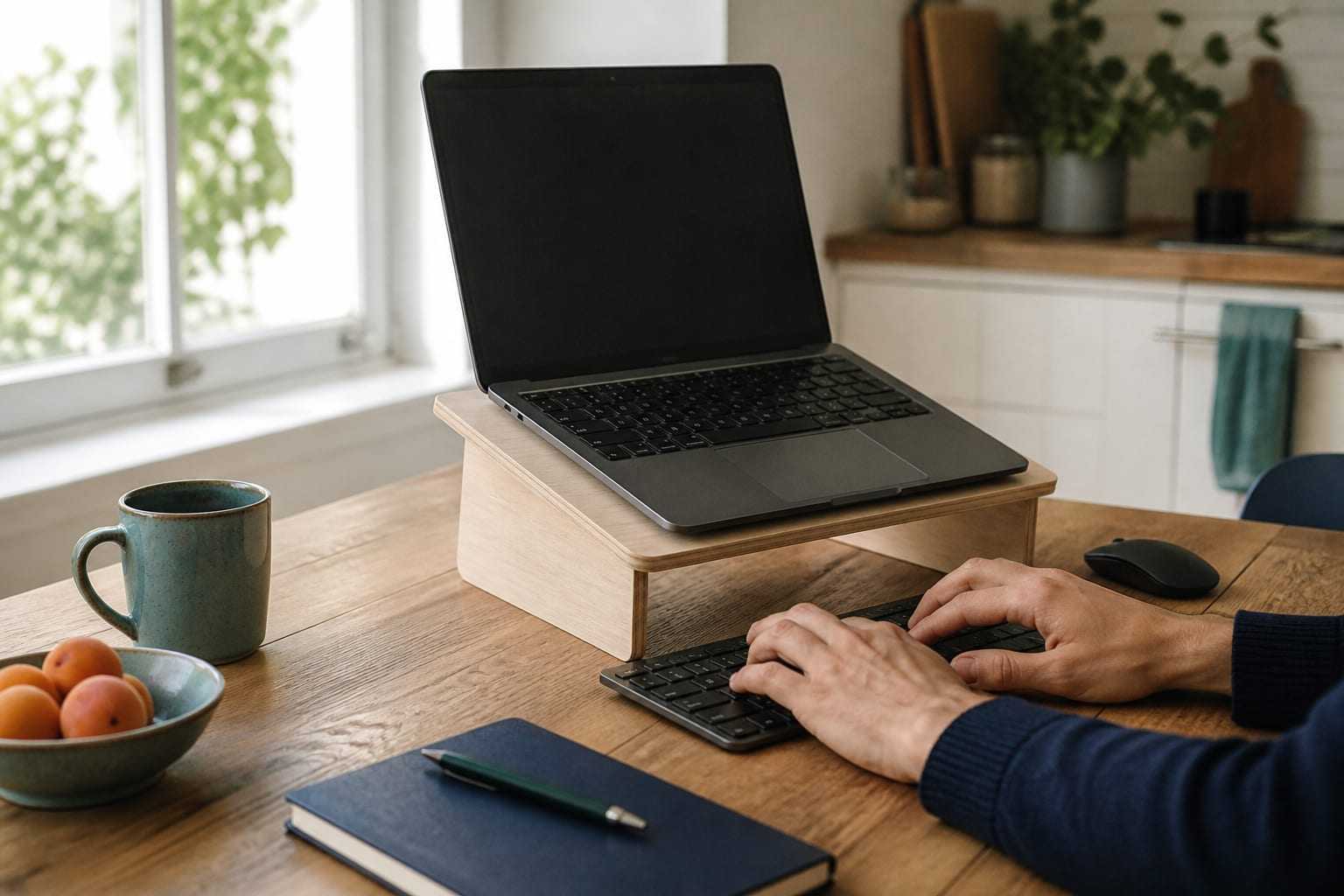
The ergonomic problem with a laptop is not a habit problem; it is a design consequence. The screen and keyboard are joined in a single body; that is why they cannot both be at the right height at the same time. When you bring the screen to eye level, the keyboard rises to shoulder height. When you keep the keyboard at a comfortable height, the screen sits too low.
Knowing this compromise matters, because the solution is not “sitting more upright”, but separating the screen from the keyboard. Below we address how you can do this in different scenarios. For the general framework, see the office ergonomics guide.
The basic compromise and its practical consequences
In an unadjusted laptop setup, one of two patterns typically develops:
- Bringing the screen forward: The person tilts the head and trunk forward in order to see the screen. The neck and shoulder-girdle muscles work continuously to carry the head.
- Reaching with the arms: The person pushes the laptop away to ease the screen, but then has to reach to the keyboard. The shoulder region is loaded this time because of the reach.
The keyboard itself is added to this. OSHA notes that small keyboards, such as those on laptops, can contribute to awkward hand and wrist postures. The trackpad also requires smaller and more repetitive finger movements than a mouse.
Even so, this does not mean that a laptop is “unsuitable”. What is decisive is duration. A twenty-minute email session and a six-hour working day are not the same thing.
The basic solution: riser + external keyboard and mouse
HSE’s recommendation on portable computers is clear: where possible, users should be encouraged to use a docking station or a firm surface with a full-size keyboard and mouse; the height and angle of the screen should be set to allow comfortable sitting and to minimise glare. Riser blocks are commonly used for screen height.
Order of application:
- Establish the chair and desk relationship. This stage is independent of whether you work on a laptop or a desktop; the steps are in the desk and chair setup guide.
- Place the external keyboard directly in front of you. Shoulders should stay relaxed, elbows close to the trunk.
- Bring the mouse immediately beside the keyboard. Keeping the reach distance short reduces shoulder loading.
- Place the laptop on the riser. The top line of the screen should be at or a little below your eye line. For details see the computer screen positioning guide.
- Check for glare. A raised screen can become more exposed to ceiling lighting.
A special product is not needed for the riser; a firm stack of books or a box that will not tip over does the same job. But using the riser without an external keyboard makes things worse: as the screen rises, the keyboard also rises and the shoulders stay continuously raised.
If there is an external monitor, a simpler solution is possible: using the monitor as the main screen and keeping the laptop screen as a secondary screen to the side. If the secondary screen is looked at for a long time, the head stays turned in one direction, so swapping the roles of the screens during the day is useful.
Working on the move
For work in an airport, on a train, in a car and between meetings, an ideal setup is not possible. Here the aim is not to build the ideal, but to soften the most demanding elements.
- Bring the laptop closer to your trunk. Shortening the reach distance is the most practical adjustment you can make in these conditions.
- Find support for your back. Use your bag, a folded jumper, or the seat’s own support.
- Tilt the screen. If there is no riser, bring the screen angle to the most upright position in which you can see it without tilting your head forward.
- Choose the work according to duration. Plan intensive keyboard work such as long text writing for a fixed setup; reading, reviewing and short replies are more suitable on the move.
- Keep the blocks short. HSE notes that more change of activity may be needed in portable-computer use when the risks of prolonged use and awkward postures cannot be reduced enough.
Carrying load should also be accounted for. HSE recommends that manual-handling risks also be assessed for users who carry heavy equipment and papers. A heavy bag carried on one shoulder is added to the shoulder loading of the day.
Sofa, bed and café
The shared feature of these environments is that the screen sits too low and the trunk is unsupported. It is not possible to make this fully ergonomic; the aim is to manage duration and load.
On the sofa: Take the laptop not onto your lap, but onto a fixed surface on which you have placed a raise. Rest your back against the sofa back and put a cushion in the low-back region. Change position rather than keeping the legs crossed continuously.
In bed: In this position the neck usually stays tilted farthest forward. Keeping the use short, limiting it to light work such as reading, and changing position often is a reasonable approach.
In cafés and shared spaces: Desk height is usually not adjustable. Bring the keyboard closer to the trunk, improve the back support, sit at a right angle to the window if possible, and enlarge the text size. If your feet do not reach the floor, you can use your bag as a footrest.
In no case is sustaining a single position for hours a valid principle, independently of the quality of the setup. EU-OSHA lists remaining in the same position for a long time and lack of opportunity to change position among musculoskeletal risk factors.
Hybrid and remote-work pattern
The ergonomic difficulty of hybrid work is that the person moves among more than one setup during the day. Because starting the settings from scratch every morning is not realistic, setting the pattern once is more useful.
- Two fixed main setups. Having a riser, external keyboard and mouse at home and at the office; using the laptop only as the piece that is carried.
- Use the same measures. In both setups the measure is the same: feet supported, elbows close to the trunk, the top line of the screen at or slightly below eye level.
- Make the home setup visible. Work at home often starts at the dining table and stays there. Designating a lasting place also makes the ergonomic settings lasting.
- Make adjustment a habit in a shared-desk pattern. HSE recommends that employees who change desks make a basic assessment. Checking chair height and screen position at every new desk you sit at takes a minute.
At organisational level we address working-from-home and hybrid-work patterns under hybrid-work ergonomics, and employee information under employee training.
If there is no equipment: the smallest meaningful improvements
If no equipment can be added because of budget or environment, the most easily applied adjustments are these:
- Shorten the reach distance. Bring the laptop and the hands closer to the trunk.
- Support the back. Any folded textile serves as lumbar support.
- Support the feet. Find a stable raise.
- Enlarge the text size. The fastest way to reduce the need to lean forward.
- Increase how often you change position. In a setup without equipment this is your strongest tool; the active break guide describes how to structure it.
- Plan intensive keyboard work. Take these into the part of the day when you can reach a better setup.
The items on this list do not replace an ideal setup, but they markedly reduce the load that appears when none of them is done.
When should you see a health professional?
A mild settling-in feeling that lasts a few days after a setup change is ordinary. In the following situations it is appropriate to continue the arrangement and also to ask for an in-person assessment:
- Your complaint in the neck, shoulder, forearm or hand region has lasted for several weeks or is increasing.
- There is numbness or tingling in the hand or fingers, discomfort that wakes you at night, or a reduction in grip strength.
- Moving your arm in a particular direction is markedly restricted.
- The complaint started after a fall, a blow or a sudden strain.
- Dizziness, a change in vision or a balance problem accompanies it; in this case a physician should be seen without delay.
- General signs such as fever or unexplained weight loss are present.
A physiotherapy assessment examines your daily work habits as well as movement and strength, and makes visible where the load is coming from. For individual support, see our neck and spine health and shoulder and upper limb pages.
This article is for general information and is not a personal assessment, diagnosis or treatment. The reason for your symptoms and what is appropriate for you can only be decided after an in-person assessment.
Sources
- HSE — Working with display screen equipment (DSE), INDG36Recommendations for a docking station, a full-size keyboard and mouse, and raising the screen on portable computers.
- HSE — Working safely with display screen equipmentDisplay-screen arrangements also applying to mobile workers, people working from home, and people who use a shared desk.
- OSHA — Computer Workstations eTool, KeyboardsThe contribution of small keyboards such as those on laptops to awkward wrist postures.
- OSHA — Computer Workstations eTool, MonitorsRecommendations on screen height and distance.
- EU-OSHA — Musculoskeletal disordersRemaining in the same position for a long time, and lack of opportunity to change position, being among the risk factors.
Frequently asked questions
Is a laptop riser enough on its own?
No. When you raise the screen, the keyboard rises with it and the shoulders lift. A riser gives the intended effect only when it is used together with an external keyboard and mouse. If there is no external keyboard, it is more reasonable to tilt the screen slightly and keep the keyboard at a comfortable height rather than using a riser.
Is using a laptop on the sofa or in bed harmful?
For short-term use this is not a problem; what is decisive is duration. In these positions the screen usually sits too low and the trunk is unsupported, so rather than spending long work blocks this way it is more appropriate to keep this use short and to change position in between.
What can I do without buying equipment?
Putting the laptop on a stack of books, bringing it closer to the trunk, finding a raise that will support the back, enlarging the text size and increasing how often you change position are cost-free adjustments. None of these replaces an ideal setup, but together they make a meaningful difference.
Does hybrid work require two separate setups?
In practice the approach that works best is to have a fixed “main setup” both at the office and at home, and to use the laptop as the piece that is carried between them. That way you do not need to start the settings from scratch every day. HSE also recommends that an assessment be made for people who use a shared desk and who work from home.
Is working on a tablet or phone different from a laptop?
The basic problem is similar, and even more marked: the screen is smaller and is usually held lower, which leads the neck to stay tilted forward for a long time. For prolonged text work it is more appropriate to prefer a setup with an external keyboard rather than these devices.
Other articles on this topic
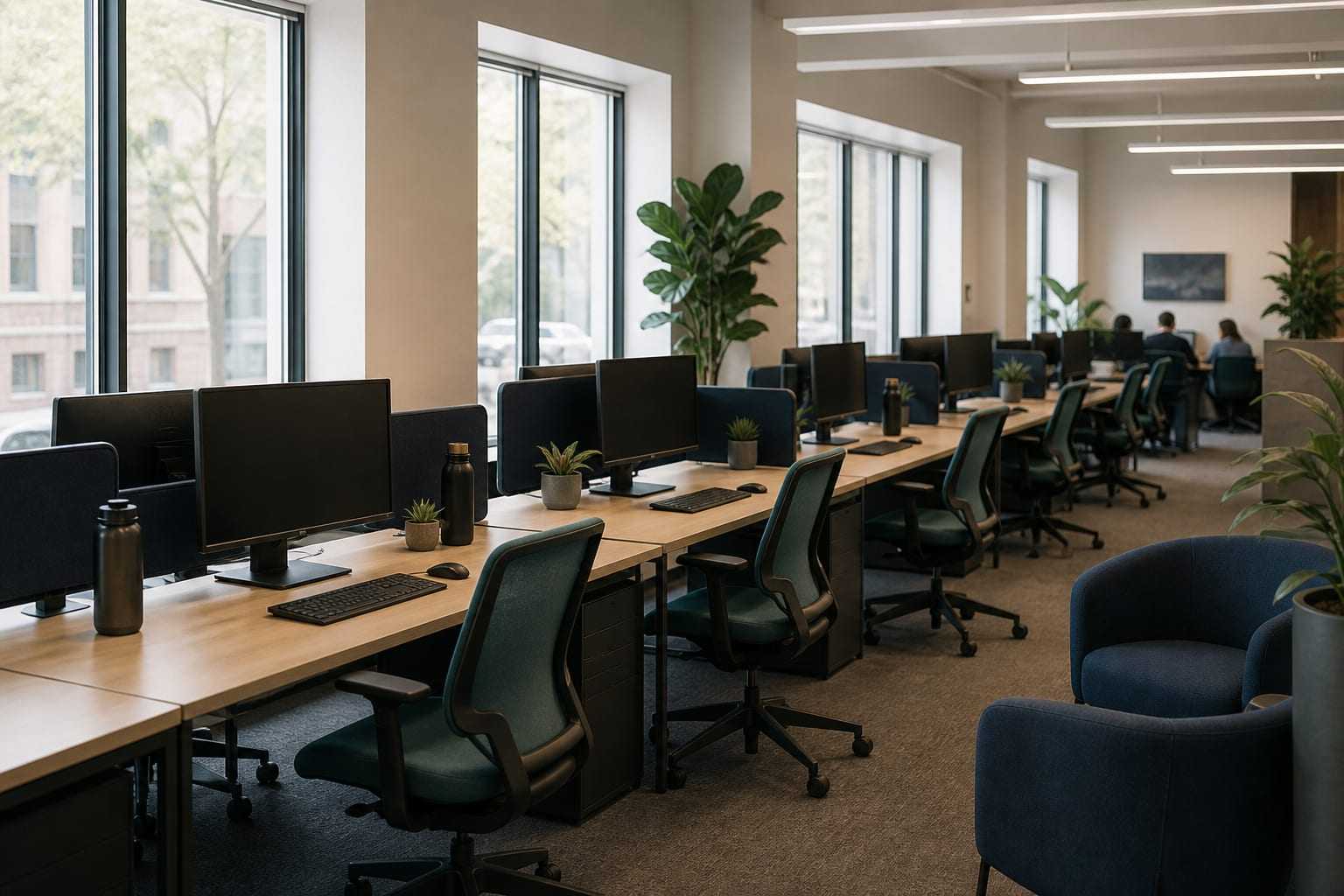
Office Ergonomics: Worker, Work and Workstation
Office ergonomics is not a search for one correct posture. We explain, step by step, how to fit the worker, the work and the workstation together.

Computer Screen Positioning: Height, Distance and Angle
Computer screen height, distance and tilt directly affect neck load. How do you set the screen for glare, dual monitors and text size?
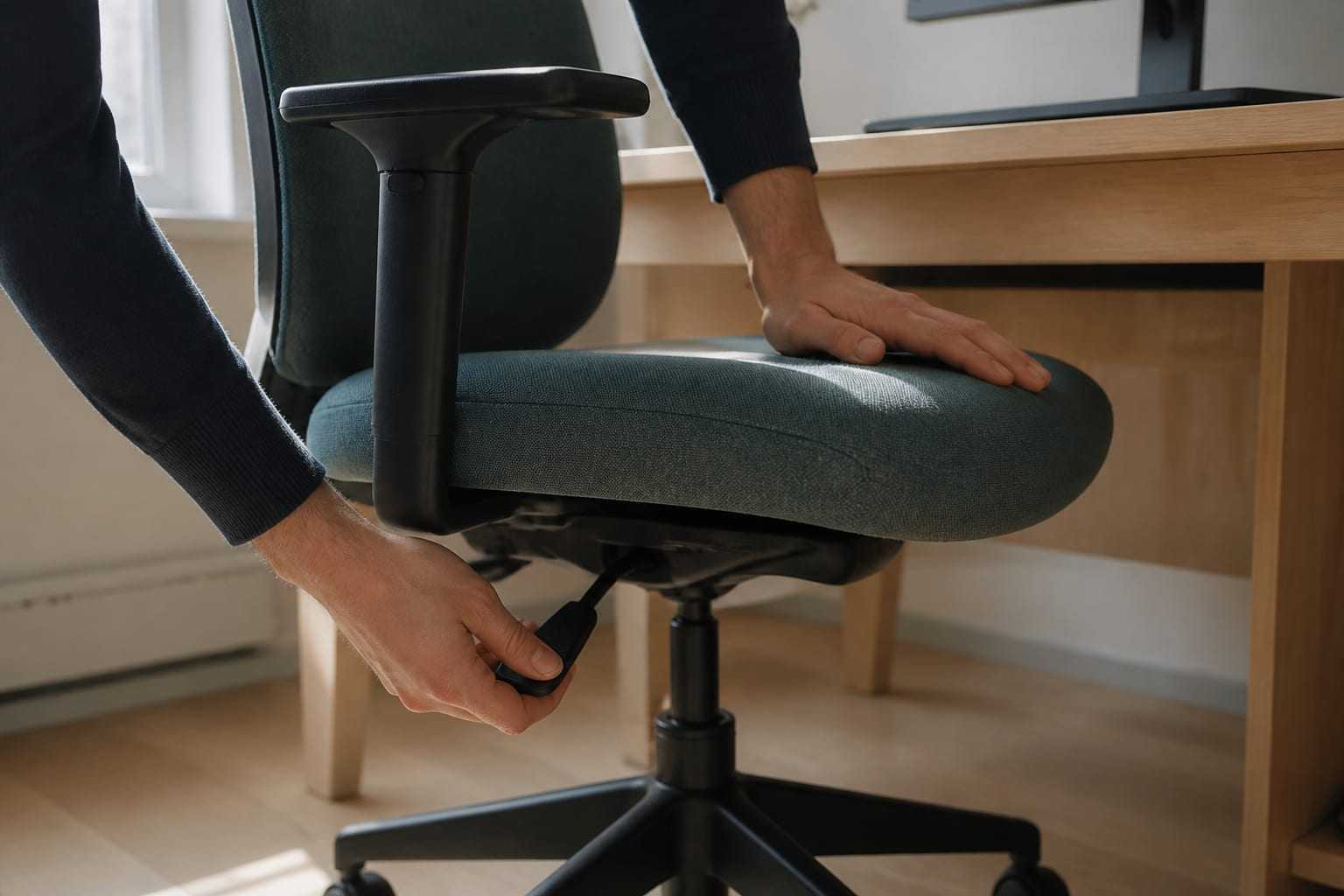
Desk and Chair Setup: A Sequenced, Practicable Path
In what order should you adjust an office chair and desk? We walk through height, seat depth, lumbar support and armrest settings step by step.