Office Ergonomics: Worker, Work and Workstation
Office ergonomics is not a search for one “correct posture”; it is arranging the fit between the worker, the work and the workstation.
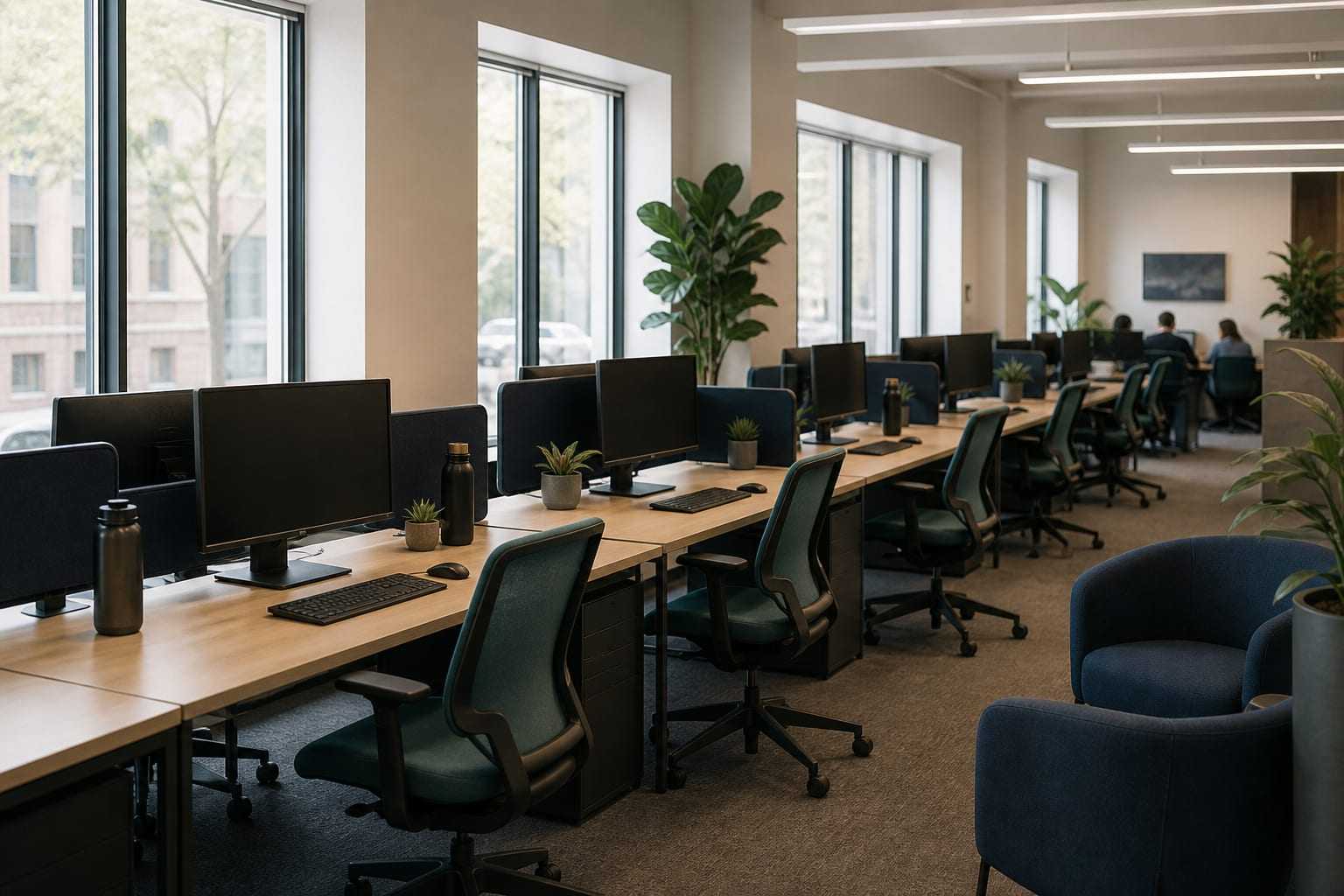
Office ergonomics is often used as a synonym for “the correct sitting position”. The definition of ergonomics points in the opposite direction: NIOSH defines ergonomics as designing work tasks and workload so that they fit the worker’s capacity. So the real question is not “how should I sit”, but “how well do this desk, this screen and this job fit me”.
This distinction matters in practice. Approaches that target posture alone force the person to monitor themselves constantly and are usually abandoned within a few days. An approach that targets fit changes the environment; the change lasts.
What office ergonomics is and is not
Office ergonomics is arranging the fit among three elements in desk work:
- The worker: height, trunk and leg proportions, visual acuity, use of glasses, any existing musculoskeletal complaints, work habits.
- The work: time spent on screen, intensity of keyboard and mouse use, phone calls, reading, meetings, the pace of the work and the person’s control over that pace.
- The workstation: chair, desk, screen, input devices, lighting and usable space.
Office ergonomics is not: a fixed list of angles, a one-size-fits-all “ergonomic” product recommendation, or a view that looks for the single cause of pain in posture. EU-OSHA notes that in work-related musculoskeletal disorders there is usually no single cause; physical and biomechanical factors play a role together with organisational, psychosocial and individual factors. Remaining in the same position for a long time, lack of opportunity to take a break or change position, and low control over the work are listed among the components of this picture.
The idea of a neutral position
A neutral position is a working posture in which the joints are in their natural alignment and the strain on muscles and tendons is reduced. OSHA’s computer workstation guide describes it as follows: head in line with the trunk and facing forward, shoulders relaxed and upper arms hanging at the sides, elbows close to the trunk and at about 90–120 degrees, forearms and wrists straight and roughly parallel to the floor, back supported by lumbar support, hips and thighs supported, feet in full contact with the floor or a footrest.
These values are a starting range, not a prescription. Your body, your desk and your work determine where you sit in these ranges; adapting the numbers to yourself, rather than forcing yourself to the numbers, is the right approach.
The basic elements of the workstation
Because each element affects the others, the station is set up as a whole.
Chair. Height, seat depth, back support and, if present, armrest settings work together. The support in the low-back region is expected to meet the inward curve of the back. For detailed, sequenced setup steps, see the desk and chair setup guide.
Desk. Desk height determines the point at which elbow height and keyboard height meet. Space under the desk for the legs to move freely is as important as when it is missing; OSHA warns against boxes, files and cases under the desk narrowing this space.
Screen. Height, distance, tilt and position relative to windows affect neck and eye load directly. This heading needs a guide of its own: computer screen positioning.
Keyboard and mouse. The aim is for the keyboard to sit directly in front of you, at a distance that keeps the shoulders relaxed and the elbows close to the trunk. The reach to the mouse is one of the most commonly overlooked sources of continuous low-level load in the shoulder region; we set this relationship out in the shoulder pain in office workers guide.
Lighting and glare. When a reflection forms on the screen surface, the person usually moves their own head rather than the screen; this leads to asymmetrical postures in the neck and trunk. HSE recommends a layout in which the screen does not face a window or a bright light directly.
Space. Everything used often — keyboard, mouse, phone, notebook — being inside the easy-reach area reduces the reaching movements that are repeated during the day.
Laptop. Because the screen and keyboard are fixed to each other, a laptop requires a compromise of its own. We address this separately in the laptop ergonomics guide.
Duration and variety are as decisive as the setup
Staying in the same position without interruption for four hours at an ergonomically well-set-up station can be more loading than working with changes of position at a moderately set-up station. OSHA states this clearly: however good your posture, remaining in the same position for a long time or sitting still is not healthy.
The reason is the quality of the load. The neck and shoulder muscles that carry the head while you look at a screen work at low intensity but without interruption. In repetitive tasks such as mouse use, hundreds of movements accumulate in small muscle and tendon groups. In both cases, what is needed for recovery is rest intervals.
The ISO 9241-5 standard lists flexibility, fit to the person and change of position together among the guiding principles of workstation design. In other words, being able to change position is designed as a feature of the station — not a suggestion remembered afterwards.
The practical counterpart is this: making small changes in your sitting position during the day, doing some work standing, standing up during phone calls, and moving at short intervals. We describe how to structure this in the active break and prolonged sitting guides.
Reviewing your own workstation systematically
Following a sequenced path rather than random corrections gives a more accurate result, because each step affects the next.
- Start with the chair. Adjust the height so that your feet are supported and your thighs are comfortable.
- Establish the desk relationship. Your elbow height should be close to keyboard height. If you had to raise the chair, add a footrest.
- Bring the keyboard and mouse closer. Shoulders should stay relaxed, elbows close to the trunk.
- Adjust the screen. Arrange height, distance and tilt at the end of this sequence; because when your sitting height changes, your eye line also changes.
- Check the light. If there is a reflection on the screen, change the position of the screen or the light.
- Simplify the reach area. Bring what you use often closer, take what you use rarely farther away.
- Plan the day. After the setup is complete, review the pattern of position change and breaks.
Spreading the changes over a few days rather than doing them all at once makes it easier to notice which adjustment is working. In a new setup there may be a mild settling-in period in the first days; a discomfort that increases or spreads, on the other hand, shows that the arrangement needs to be reviewed again.
The limits of self-adjustment
Personal arrangement makes a meaningful difference for most desk workers, but it does not solve every problem. In the following situations it is necessary to go beyond individual effort:
- If the furniture is not adjustable and a physically suitable setup cannot be established.
- If the pace of the work, the workload or the meeting pattern already does not allow a change of position. This is an organisational matter and is not solved by individual ergonomics training.
- If similar complaints are seen in more than one person in the same department. This is a pattern that requires assessment of the station layout or of work organisation.
- If there is an existing musculoskeletal complaint, pregnancy, a vision problem or a special need, the setup needs to be adapted to the person.
HSE defines it as a duty that, for people who work regularly with display screen equipment, the employer assesses the workstation, reduces the risks, ensures that employees have the opportunity for a change of activity or a break that interrupts screen work, and provides information and training. At organisational level we run this process under workstation analysis, sitting and work pattern and ergonomics consulting; employee training is appropriate for information aimed at teams.
When should you see a health professional?
A substantial portion of discomfort related to desk work eases over time with arrangement and variety of movement. Still, some situations require an in-person assessment. The following should be read not as findings to be anxious about, but as signs that say “do not try to solve this on your own”:
- Your complaint has lasted for several weeks, is gradually increasing, or disturbs you at night.
- You feel numbness, tingling or loss of strength in the arm, hand or fingers.
- Moving your arm in a particular direction is markedly restricted.
- The pain started after an injury, a fall or a blow.
- General signs such as fever, unexplained weight loss or night sweats accompany it.
- There is a change in balance, walking, or bladder or bowel control. In this case a physician should be seen without delay.
A physiotherapy assessment examines movement, strength, load tolerance and your daily work habits together, and makes visible where the arrangement has fallen short. For individual support, see our neck and spine health and low-back and mid-back health pages.
This article is for general information and is not a personal assessment, diagnosis or treatment. The reason for your symptoms and what is appropriate for you can only be decided after an in-person assessment.
Sources
- NIOSH — About Ergonomics and Work-Related Musculoskeletal DisordersDefinition of ergonomics as adapting the work to the worker’s capacity.
- OSHA — Computer Workstations eTool, Good Working PositionsNeutral body position and recommendations to change position during the day.
- EU-OSHA — Musculoskeletal disordersPhysical, organisational and individual risk factors in musculoskeletal disorders being assessed together.
- HSE — Working safely with display screen equipmentWorkplace assessment and risk-reduction duties in work with display screen equipment.
- ISO 9241-5:2024 — Ergonomics of human-system interaction, Part 5: Workstation layout and postural requirementsPrinciples of flexibility, fit and change of position in workstation layout.
Frequently asked questions
Is there one correct sitting position in office ergonomics?
No. Ergonomics guides recommend not a single ideal posture, but several working positions that keep a neutral joint alignment and the ability to move between them. Even a perfect setup creates load when it is held without change for hours.
Can I improve my workstation without buying ergonomic products?
In most cases, yes. Raising the screen, bringing the keyboard closer to the trunk, adjusting seat height, adding a footrest and enlarging text size are adjustments that do not require extra cost. Product purchases are planned more accurately after these basic adjustments have been made.
How often should I change position in the office?
There is no single duration that applies to everyone. Ergonomics guidance recommends frequent, short changes of position rather than long uninterrupted blocks; moving before fatigue becomes obvious is a practical measure. Monitoring your own discomfort signals is more useful than counting minutes.
Is a standing desk better than sitting?
Standing work is not a solution that replaces sitting; it is an option that increases variety of positions. Standing still for a long time also creates its own load. What is decisive is that position can change during the day.
What should I do if my complaint continues after I have arranged my workstation?
An ergonomic arrangement is important but may not be enough on its own. If the complaint has lasted for weeks, restricts your function during the day, or is gradually increasing, an in-person assessment by a physiotherapist or a physician is the appropriate next step.
Other articles on this topic
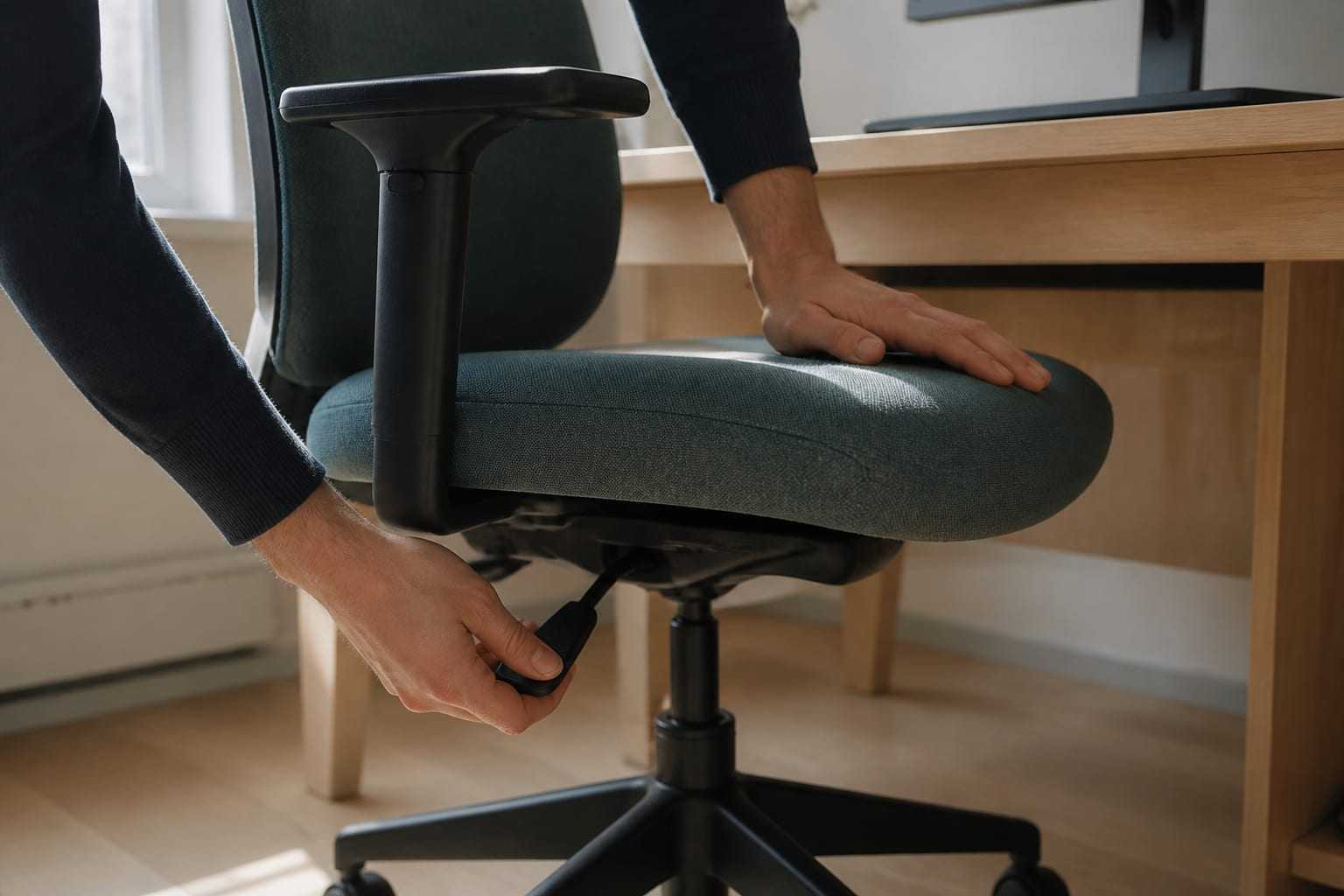
Desk and Chair Setup: A Sequenced, Practicable Path
In what order should you adjust an office chair and desk? We walk through height, seat depth, lumbar support and armrest settings step by step.

Computer Screen Positioning: Height, Distance and Angle
Computer screen height, distance and tilt directly affect neck load. How do you set the screen for glare, dual monitors and text size?
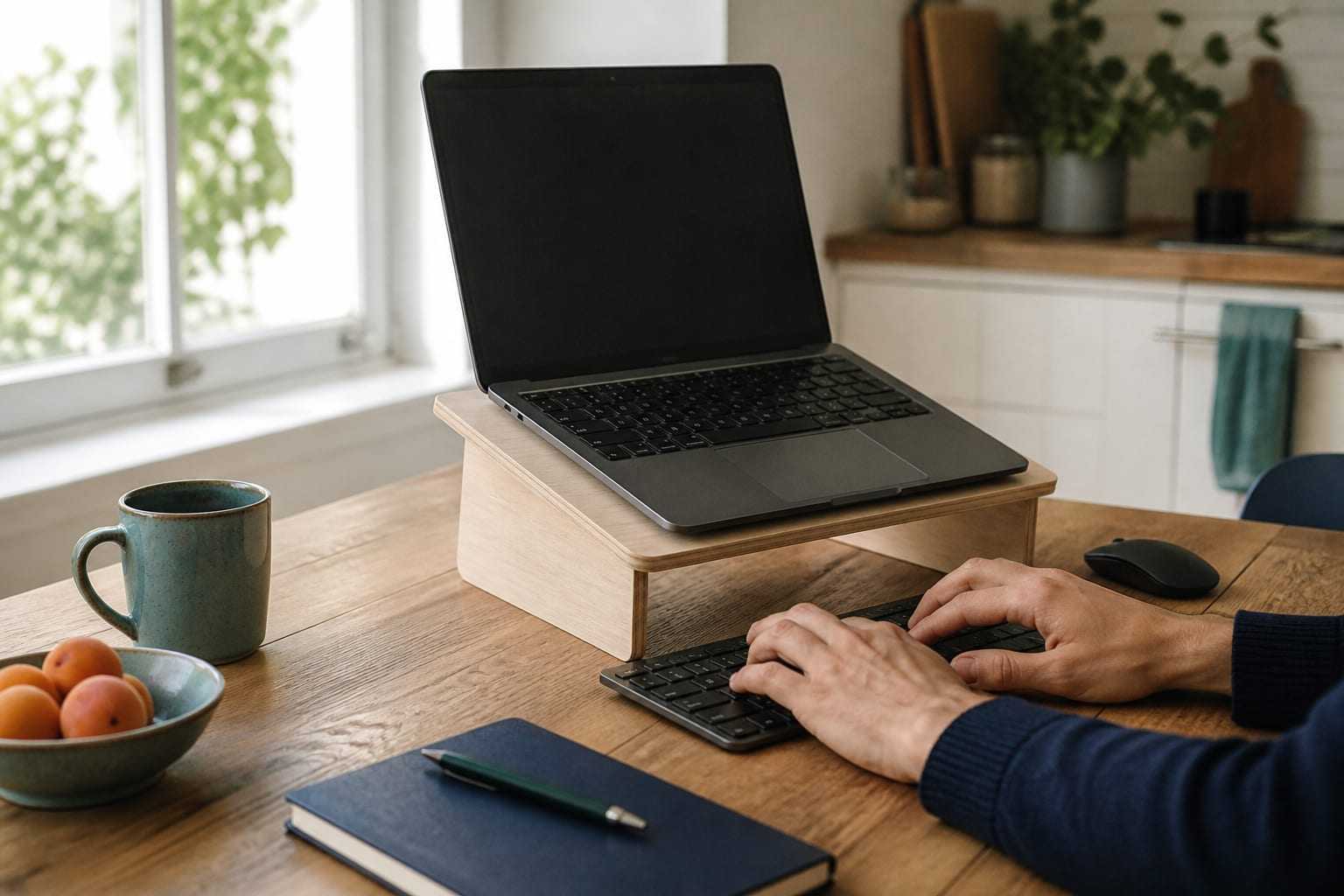
Laptop Ergonomics: Separating Screen and Keyboard
On a laptop, the screen and keyboard are fixed together. How do you resolve that compromise with a riser, external keyboard and mouse? Practical options for hybrid work.