Computer Screen Positioning: Height, Distance and Angle
Screen height, distance and angle are among the most easily changed factors that determine the load the neck carries through the day.

Screen position is the setting at the workstation that is most easily changed and most often neglected. An adjustment that can be made by putting a book down, or by loosening a monitor arm and tightening it again, changes the quality of the load the neck carries through the day.
In this guide we address screen height, distance, tilt, the relationship with light, a dual-monitor layout and text size together. Before you adjust the screen you need to establish your chair and desk relationship; for the order see the desk and chair setup guide, and for the overall framework see the office ergonomics guide.
Why does screen position affect neck load?
The head is carried in balance on the trunk. When the line of sight is extended forward or downward to reach the screen, the head’s centre of gravity moves away from the trunk’s support line. In this case the neck and shoulder-girdle muscles have to work at low intensity but without interruption to keep the head in place.
The quality of this load matters: it is not high in a single burst, but prolonged. OSHA notes that static postures such as watching a screen for a long time can fatigue the neck and shoulder muscles that support the head when no break is taken. So the problem is usually not “a momentary poor posture”, but a fixed position sustained for hours.
If the screen is too high, the head tips back. If it is too low, the neck stays tilted forward for a long time. If it is shifted to the side, the head turns and the neck muscles are loaded asymmetrically. If it is too far away, the person leans forward and loses the back support. Each of these four patterns is resolved with a different adjustment.
The neck pain at a desk guide, in which we address neck complaints related to desk work in more detail, complements this topic.
Screen height
The commonly used measure is this: let the top line of the screen be at or a little below your eye line. OSHA guidance expresses it this way and recommends that the centre of the screen normally sit 15–20 degrees below the horizontal eye line. The ISO 9241-5 standard, on the other hand, defines the line of sight in a comfortable sitting posture as tilted about 35 degrees down from the horizontal, and that it is appropriate to place the most important visual screen within ±15 degrees vertically and horizontally of this line of sight.
The numbers from these two sources do not match one-to-one, and that is not surprising: different reference postures and different screen sizes give different results. That is why using two observable measures is more reliable than targeting a number:
- The head is not tipped back. If you need to lift the chin to look at the screen, the screen is high.
- The gaze is slightly downward. If you can see the screen by turning the eyes slightly down, without tilting the neck markedly forward, the height is suitable.
On large screens the whole of the screen does not fit this range. In that case set the measure not from the top edge of the screen, but from the region you look at most.
Practical application: if there is a monitor arm or a height setting, use it; if not, a firm monitor riser, a stack of books or a box does the same job. Putting the screen on top of the computer case usually raises it too much.
Screen distance
OSHA notes that the screen should be at least about 50 cm (20 inches) away, and that the 50–100 cm range is generally preferred. On small screens it may be necessary to enlarge the text size in order to keep readability at this distance.
Distance has drawbacks in both directions:
- If it is too far the person leans forward to see small text; the back support goes out of use and the trunk is loaded.
- If it is too close the eye’s focusing effort increases; the person may tip the head back, or push the chair back and start writing with the arms reaching.
If desk depth is insufficient, it may not be possible to take the screen to a suitable distance. OSHA lists as options in this case separating the desk from the wall, taking the screen to the corner of the work area, or increasing the working depth by using a separate surface for the keyboard.
Screen tilt
The screen surface is set so that it is perpendicular to your line of sight. OSHA notes that this is usually achieved by not tilting the screen more than 10–20 degrees. Excessive tilt creates two problems: the image on the screen is distorted, and on a screen tipped back a reflection from overhead lighting can form.
If after tipping the screen back you see a reflection of the ceiling lights on the screen, reduce the tilt or rearrange the lighting.
Light, windows and glare
Glare is a stealthy ergonomic problem, because its effect is not seen directly: instead of correcting the screen, the person moves their own head and trunk to avoid the reflection. The result is an asymmetrical and sustained posture in the neck.
Practicable adjustments:
- Place the screen at a right angle to the window. This is also OSHA’s short recommendation. The screen facing a window directly creates a reflection on the screen; a window behind it creates a brightness problem from the background.
- Use curtains and blinds. The direction of light changes during the day; the setting may also change.
- Review the overhead lighting. A bright fitting that remains directly above the screen is the most common source of reflection.
- Adjust brightness and contrast to the environment. HSE recommends that screen settings be adapted to the room’s lighting conditions and that the screen surface be kept clean.
- If you use a printed document, a document holder can help reduce neck and eye movements.
Dual-monitor and large-screen layout
In a dual-monitor layout the decisive question is in what proportion you use the two screens.
If you use both intensively: place the screens in a symmetrical “V” arrangement so that the join point comes directly in front of you. This equalises the amount of turning toward both screens.
If one is the main screen: place the main screen directly in front of you and the second immediately beside it. Watching the secondary screen to the side for a long time leads the neck to stay turned in one direction.
OSHA notes that the screens should not be more than 35 degrees away to the left or right horizontally, and emphasises that working with the head turned to the side for a long time loads the neck muscles unevenly.
Keeping the two screens at the same height is also important; a height difference creates small head movements that are repeated through the day.
Text size and zoom: an ergonomic tool
Text size is usually treated as a matter of preference; yet it is an ergonomic setting. If the text is small, the person either leans forward or strains the eyes. Both responses accumulate during the day.
- Use the operating system’s text-scaling setting.
- Increase the zoom without hesitation in the browser and in document applications.
- If you are working on a small laptop screen, text size is the most practical way to keep the screen distance.
- HSE recommends choosing colour combinations that are comfortable for the eye and that the characters be clear.
Watching a screen for a long time can create eye strain and a feeling of dryness. OSHA recommends focusing at intervals on a distant object and regularly looking away from the screen and blinking. This is more useful when it is combined with short changes of activity that interrupt screen work; the active break guide describes how to set this up.
The situation is different on a laptop
On a laptop the screen and keyboard are fixed to each other. When you bring the screen to the right height, the keyboard rises out of reach; when you bring the keyboard to the right height, the screen sits too low. We address how this structural compromise is resolved in the laptop ergonomics guide.
In environments with a large number of employees, screen layout, lighting and desk depth need to be assessed together. We run this process under our workstation analysis and office ergonomics services.
When should you see a health professional?
After a screen adjustment, a feeling of discomfort in the neck and shoulder region is expected to decrease within a few days. In the following situations it is appropriate to ask for assessment rather than relying on the adjustment alone:
- Your complaint in the neck, shoulder or head region has lasted for several weeks or is increasing.
- There is numbness, tingling or loss of strength radiating into the arm, forearm or fingers.
- Your head-turning movement is markedly restricted.
- The complaint started after a fall, a blow or a sudden strain.
- Dizziness, a balance problem, a change in vision or difficulty swallowing accompanies it; in this case a physician should be seen without delay.
- General signs such as fever or unexplained weight loss are present.
If eye strain, blurred vision or headache continues together with screen work, an eye examination should also be considered. For assessment on the musculoskeletal side, see our neck and spine health page.
This article is for general information and is not a personal assessment, diagnosis or treatment. The reason for your symptoms and what is appropriate for you can only be decided after an in-person assessment.
Sources
- OSHA — Computer Workstations eTool, MonitorsRecommendations on viewing distance, screen height, sideways turning angle and screen tilt.
- OSHA — Computer Workstations eTool, DesksThe effect of work-surface depth on screen distance.
- HSE — Working with display screen equipment (DSE), INDG36Practical recommendations on eye level, glare prevention, screen clarity and text-size choice.
- ISO 9241-5:2024 — Ergonomics of human-system interaction, Part 5: Workstation layout and postural requirementsThe line of sight in a comfortable sitting posture and the most suitable position of the screen relative to the line of sight.
Frequently asked questions
Should the top edge of the screen be at eye level?
Common guidance recommends that the top edge of the screen be at or a little below eye level, so that the gaze is slightly downward. Standards define this angle with different ranges, so using the measure “gaze slightly down, head not tipped back” is more reliable than a single exact number.
How far away should the screen be?
OSHA notes that the screen should be at least about 50 cm away and that the 50–100 cm range is generally preferred. The practical measure is that you can read the text comfortably while your trunk stays on the back support and without having to lean forward.
How are two monitors placed?
The layout depends on the proportion in which you use the screens. If you use both intensively, placing them symmetrically so that the join point comes directly in front of you is suitable; if you use one as the main screen, placing it directly in front of you and the second immediately beside it is suitable. The aim is that the head does not stay turned to the side for a long time.
Does screen height change if I wear glasses?
Yes. People who use bifocal or progressive lenses look at the screen through the lower part of the lens, so they may tip the head back even on a correctly placed screen. OSHA notes lowering the screen a little below the usual recommendations in this case, and if needed using single-vision lenses made for computer distance, as options. It is appropriate to assess this topic with your eye-health specialist.
Does enlarging the text size count as an ergonomic intervention?
Yes. Small text leads the person to lean forward toward the screen and to lose the back support. HSE also recommends choosing text of a size that can be read easily in a comfortable working position. Increasing the text size or the zoom is an adjustment that does not require equipment.
Other articles on this topic
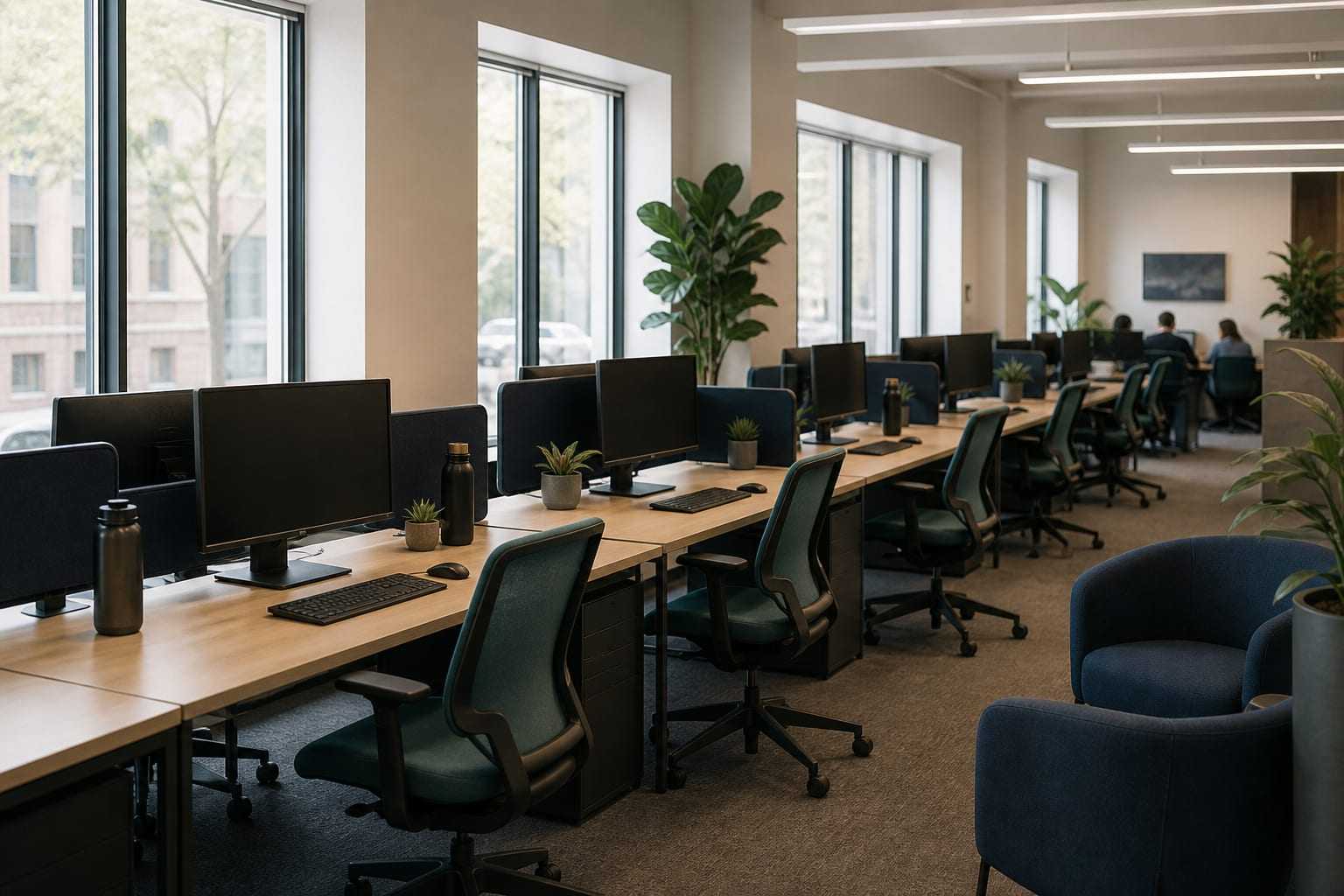
Office Ergonomics: Worker, Work and Workstation
Office ergonomics is not a search for one correct posture. We explain, step by step, how to fit the worker, the work and the workstation together.
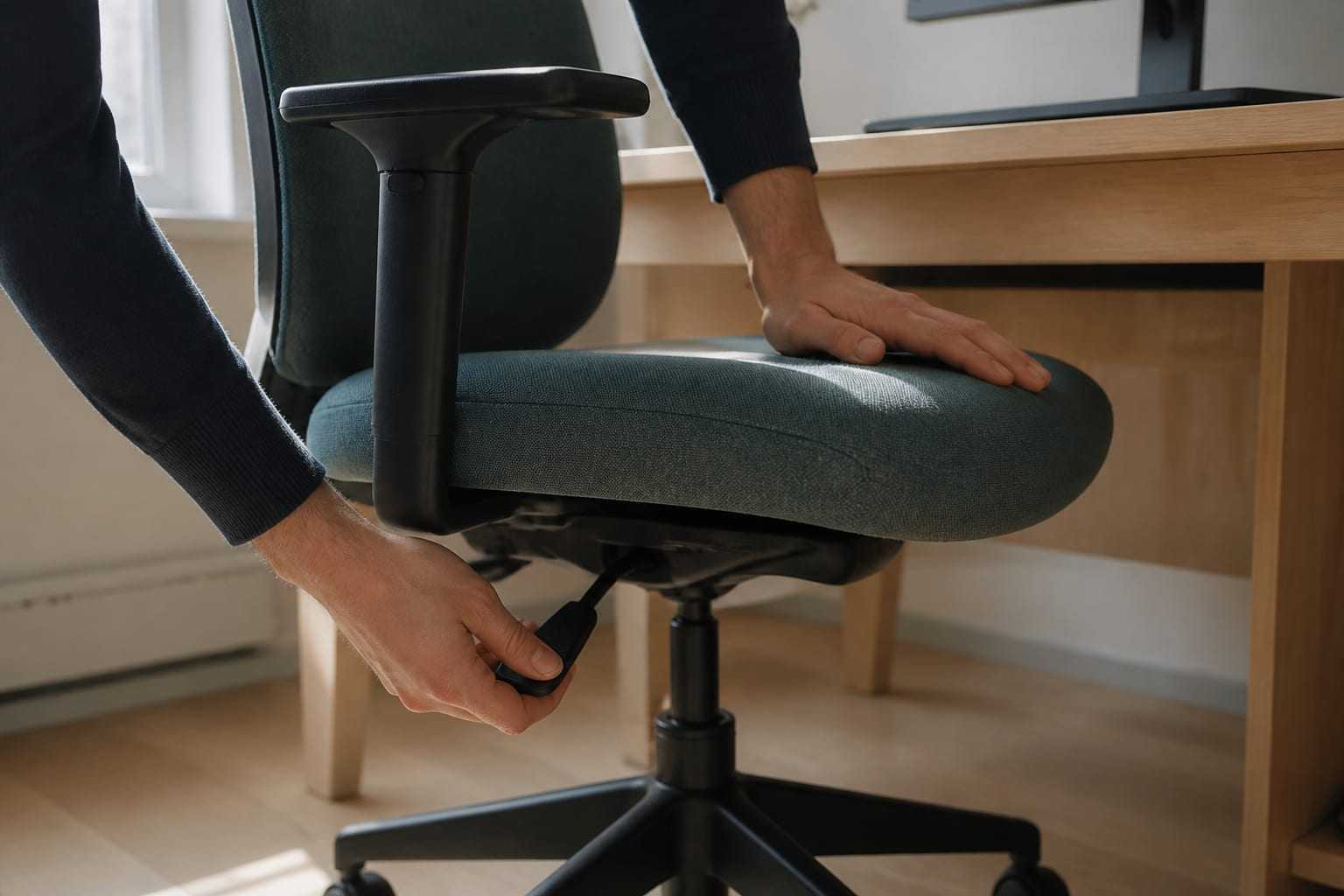
Desk and Chair Setup: A Sequenced, Practicable Path
In what order should you adjust an office chair and desk? We walk through height, seat depth, lumbar support and armrest settings step by step.
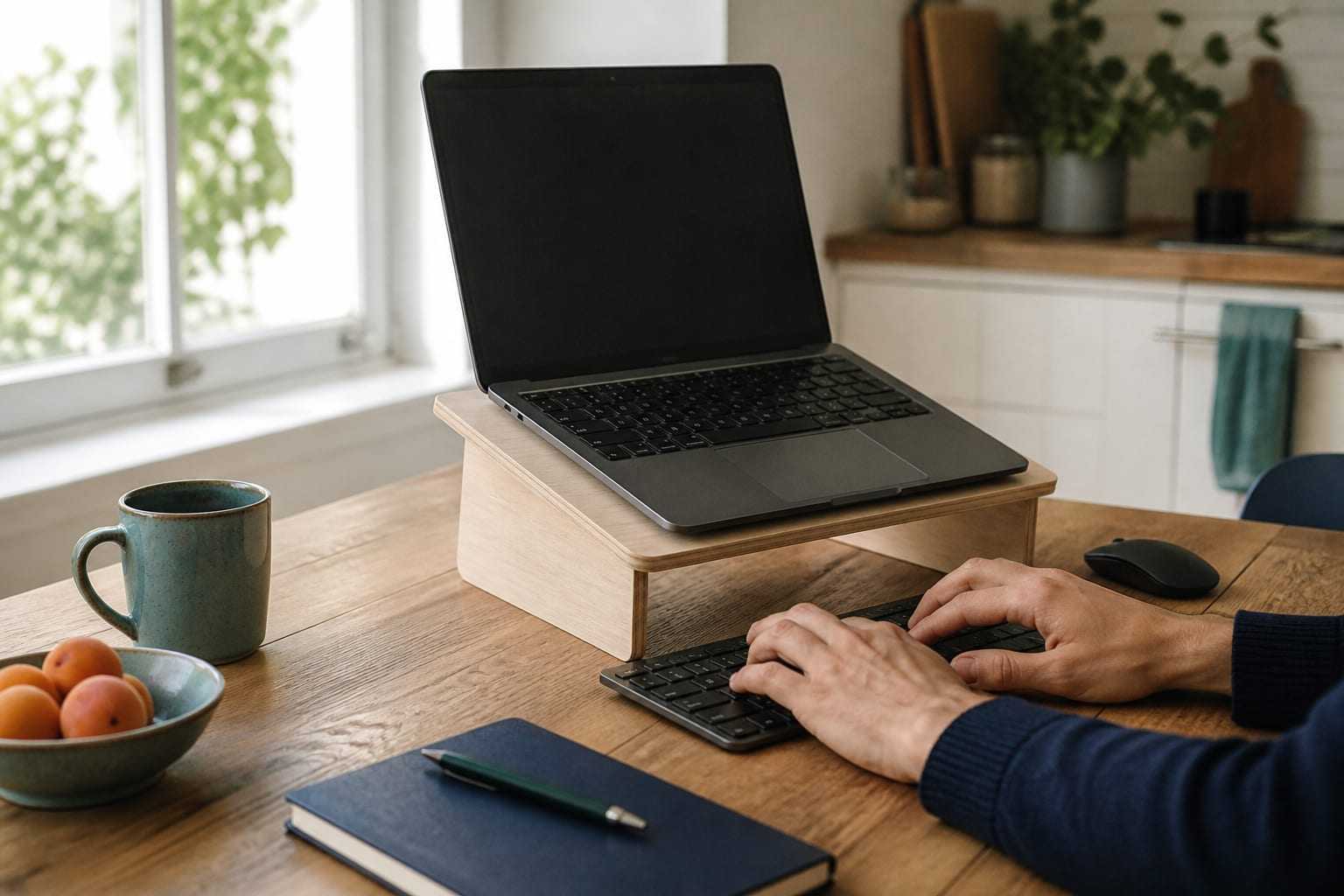
Laptop Ergonomics: Separating Screen and Keyboard
On a laptop, the screen and keyboard are fixed together. How do you resolve that compromise with a riser, external keyboard and mouse? Practical options for hybrid work.